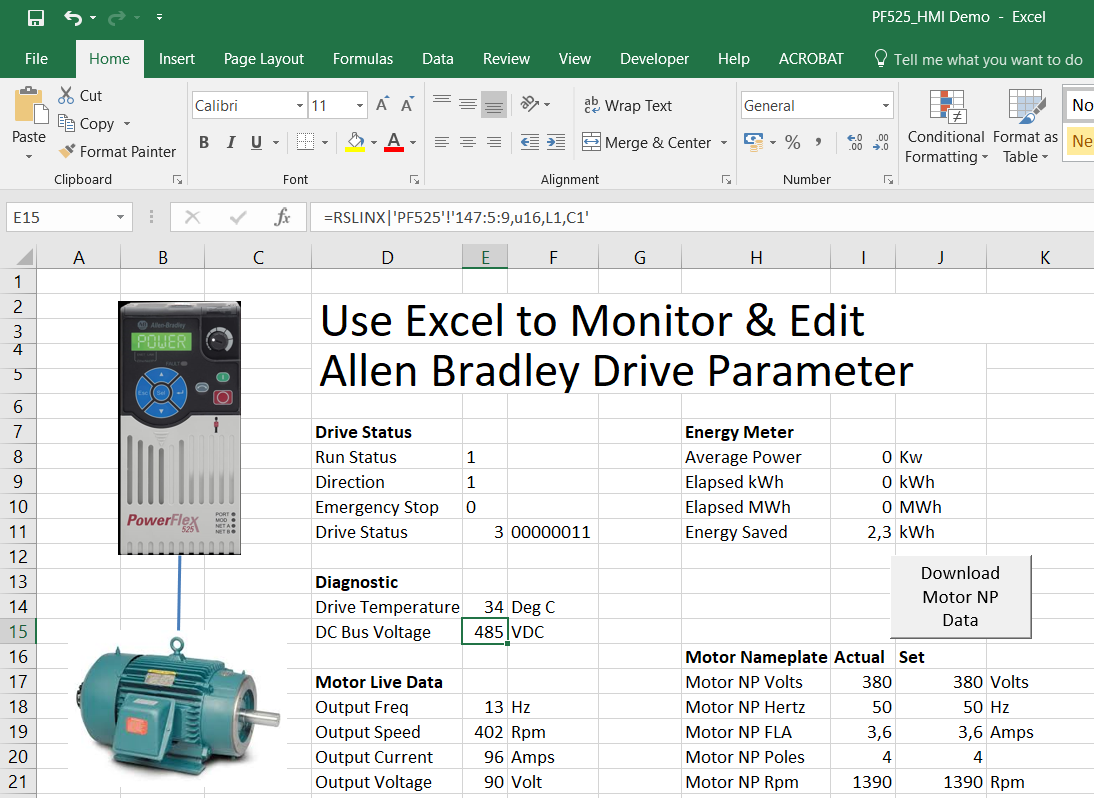
First, what is the advantage to use Excel to monitor Powerflex Drive /VFD?
* You can get the whole picture, by monitor all the important parameter in one page. This can be quite useful during commissioning.
* Can do copy paste, add formula, add chart, note etc which can be useful for analysis and understand better.
* It is easy and quick to set up.
Okay.
𝗛𝗼𝘄 𝘁𝗼 𝗠𝗼𝗻𝗶𝘁𝗼𝗿 𝗔𝗹𝗹𝗲𝗻-𝗕𝗿𝗮𝗱𝗹𝗲𝘆 𝗣𝗼𝘄𝗲𝗿𝗳𝗹𝗲𝘅 𝗱𝗿𝗶𝘃𝗲 𝗽𝗮𝗿𝗮𝗺𝗲𝘁𝗲𝗿 𝗳𝗿𝗼𝗺 𝗘𝘅𝗰𝗲𝗹 𝘀𝗽𝗿𝗲𝗮𝗱𝘀𝗵𝗲𝗲𝘁?
Use RS Linx as DDE (Dynamic Data Exchange) Server. So just need Microsoft Excel and RS Linx Classic (not Light version) installed in PC.
Here is the procedure:
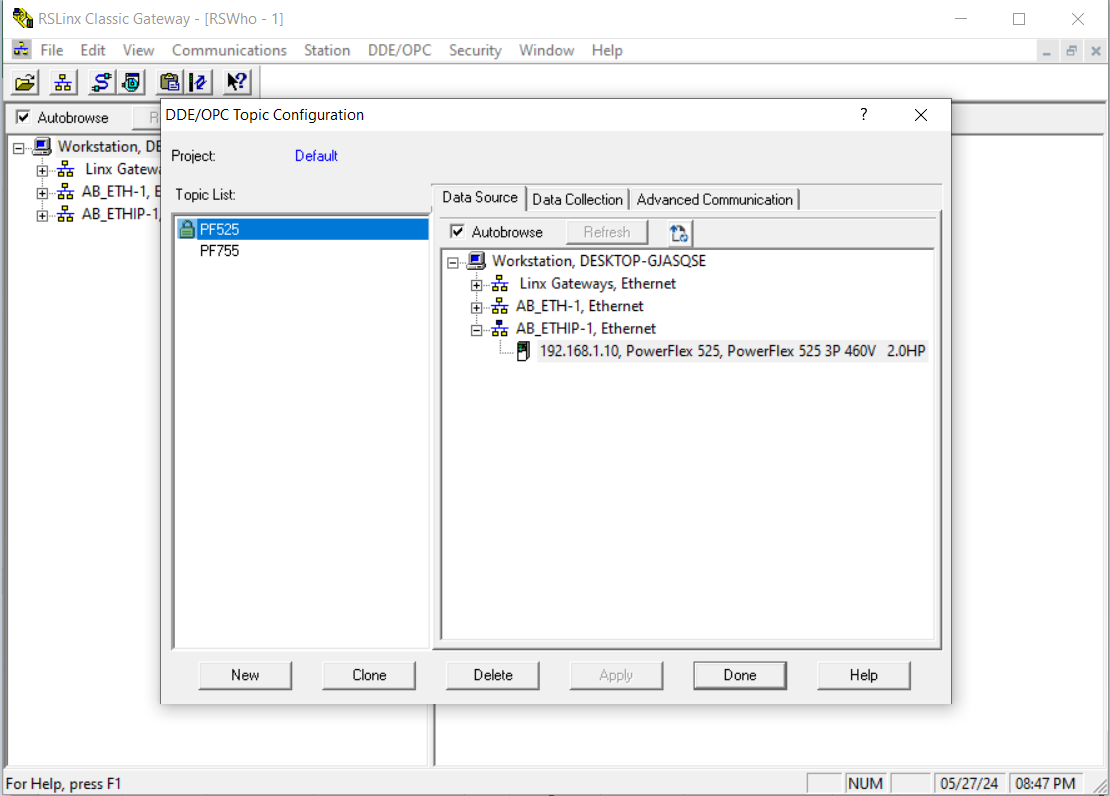
▪️First Create DDE Topic in RS Linx.
1. Open RSLinx and click DDE/OPC then Click Topic Configuration
2. Right click in the Top List window and click ’New’
3. Enter in a name for your topic and press enter
4. With the topic name highlighted in the Topic List window, browse to the drive on the right window and highlight the drive.
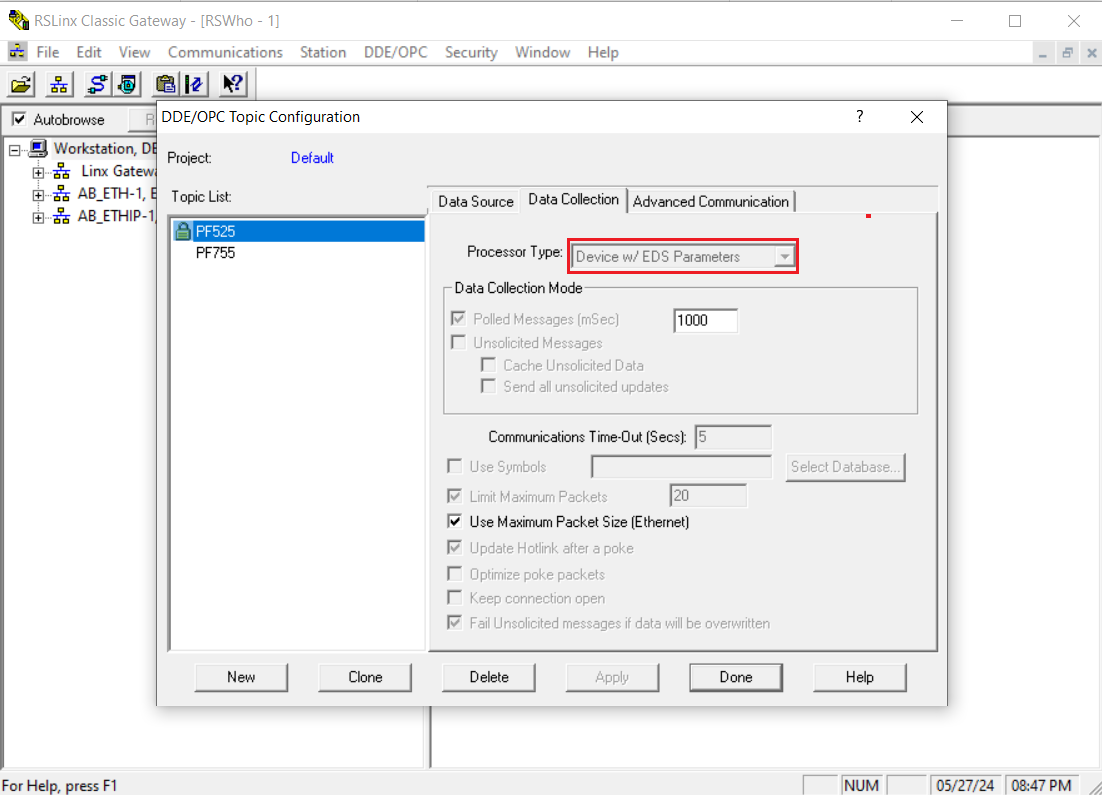
5. Click ’Apply’ then go to the ’Data Collection’ tab.
6. Under ’Processor Type,’ select ’Device w/ EDS Parameters’
▪️Second, Open up Microsoft Excel ;
Type the formula in the one of the Excel cell with The syntax
=RSLinx|’topic name’!’class code:instance:attribute,datatype,L1,C1′
Example for a PowerFlex 525:
=RSLINX|’PF525′!’147:5:9,u16,L1,C1′
Example for a PowerFlex 755:
=RSLinx|’PF755′!’147:11:9,f32,L1,C1’
Topic Name – The previous created topic name in RS Linx
Class Code – 147 (DPI parameter object)
Instance = Parameter number (if parameter in port 0)
Attribute =9 (the parameter value)
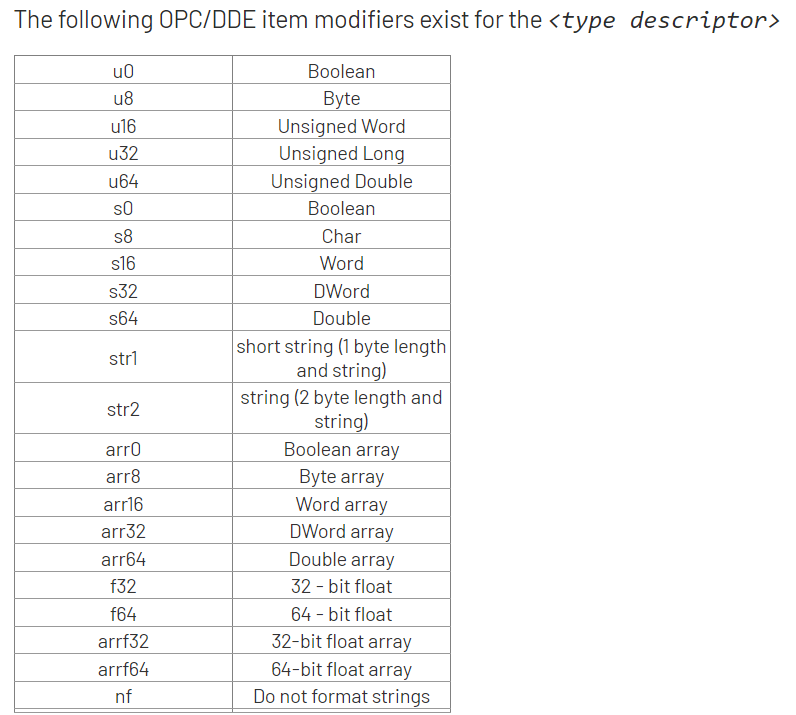
Datatype- u stands for unsigned, f stands for floating point and 32 stands for 32 bits
𝗛𝗼𝘄 𝗮𝗯𝗼𝘂𝘁 𝘁𝗼 𝗲𝗱𝗶𝘁 𝗗𝗿𝗶𝘃𝗲 𝗣𝗮𝗿𝗮𝗺𝗲𝘁𝗲𝗿?
Let say parameter 31 [Motor NP Volts] on Powerflex 525.
Here is the procedure:
1. Save Excel file as Book1.xlsm (Macro Enabled Excel file)
If the Developer tab is not there; click on File menu, click on Options, Customize Ribbon on the left, click Developer checkbox.
2. Create a button in Excel to modify the drive parameter value. Click on Insert in the Excel Developer tab, then select the Command Button in the ActiveX Controls.
3. Somewhere on your spreadsheet click and drag to create a new button.
4. Right Click on the Button, Assign Macro, Click Edit and it will open Visual Basic where you can program the button.
5. Add the code from sample image to change Parameter 31 [Motor NP Volts].
The code uses an explicit message to write the value in cell D6 to Parameter 31 [Motor NP Volts].
The code needs to have the correct data type for the parameter your are writing to.
That’s it.